
Version: 32.0.15.6590 | Vendor: NVIDIA Corporation
Download WhoCrashed – Crash Dump Analyzer
Find out which drivers crashed your Windows PC. WhoCrashed analyzes crash dumps and identifies the cause of blue screens in plain language.
System Requirements
WhoCrashed runs on most Windows machines with minimal hardware demands. Here is what your system needs to run crash dump analysis.
| Component | Minimum | Recommended |
|---|---|---|
| Operating System | Windows XP SP3 (32-bit or 64-bit) | Windows 10 or 11 (64-bit) |
| Processor | 1 GHz single-core (x86 or x64) | 2 GHz dual-core or faster |
| RAM | 512 MB | 2 GB or more |
| Disk Space | 50 MB free (for installation) | 200 MB free (including dump storage) |
| Display | 800 x 600 resolution | 1280 x 720 or higher |
| Permissions | Administrator privileges required | Administrator privileges required |
| Internet | Not required for local analysis | Optional (for symbol server in Pro edition) |
Already meet the requirements? Download WhoCrashed and start analyzing crash dumps right away.
What Is WhoCrashed?
A crash dump analyzer that tells you exactly which driver brought down your Windows PC.
WhoCrashed is a diagnostic utility for Windows that reads crash dump files and identifies the driver responsible for a blue screen of death (BSOD) or unexpected reboot. Developed by Resplendence Software Projects, it has become a go-to tool for users who want answers about system crashes without learning kernel debugging.
Every time Windows encounters a fatal error, it creates a minidump file in the C:WindowsMinidump folder. Most people never look at these files because reading them requires tools like WinDbg and a working knowledge of stack traces. WhoCrashed changes that. It scans your minidump files with one click and translates the raw crash data into plain-language reports that anyone can understand.
Who Is It For?
If your PC keeps crashing or restarting on its own and you have no idea why, WhoCrashed is built for you. System administrators use the Professional Edition to diagnose machines remotely across a network, while home users rely on the free Home Edition to pinpoint faulty drivers on their own computer. Tech support staff frequently recommend it on Reddit and Windows help forums because users can run it themselves and share the results.
Platform Support
WhoCrashed runs on every modern version of Windows, from XP SP3 through Windows 11, and covers both 32-bit and 64-bit systems. It also supports Windows Server editions going back to Server 2003. The installer weighs in at roughly 11 MB for the Home Edition, and the software requires administrator privileges to access crash dump files. No other special hardware or software is needed.
Free vs. Professional
The free Home Edition handles local crash analysis and produces the same readable reports that made WhoCrashed popular. The Professional Edition ($34.95) adds network analysis for remote machines, command-line operation, symbol server integration, and detailed kernel stack traces with full symbol resolution. For most home users, the free edition covers everything you need.
Ready to find out what is crashing your PC? Download WhoCrashed
Key Features
WhoCrashed reads your Windows crash dumps and tells you exactly which driver or component caused each blue screen or unexpected reboot.
Automatic Crash Dump Analysis
Hit the Analyze button and WhoCrashed scans every minidump file on your system. It parses kernel crash data, identifies bug check codes, and maps each crash to the responsible driver. The entire process takes seconds, with no manual configuration or prior debugging knowledge needed.
Plain-Language Reports
Results are presented as readable text instead of hex codes. Each report explains what happened, which driver was involved, and what you can try to fix it.
Driver Identification
WhoCrashed pinpoints the exact .sys file behind each crash. You get the driver name, vendor, version number, and file path so you know precisely which component to update or replace.
Silent Reboot Detection
Some crashes reboot Windows without ever showing a blue screen. WhoCrashed catches these too by reading the dump files left behind, so no crash goes unnoticed.
Hardware Fault Detection
When crash patterns point to failing RAM, a dying SSD, or an overheating GPU, WhoCrashed flags potential hardware problems and suggests you run diagnostics before replacing drivers.
Safe Mode Compatible
If your PC can only boot into Safe Mode, WhoCrashed still works. Run the analysis from Safe Mode to diagnose crashes without needing a fully functional desktop.
Remote and Network Analysis (Pro)
The Professional edition lets IT administrators analyze crash dumps from remote machines over the network. Troubleshoot servers and workstations across your organization from a single console, without physically accessing each computer. Supports command-line automation for batch processing across multiple endpoints.
Crash History Timeline
View all past crashes in a sortable list with dates, times, and bug check codes. Spot recurring patterns and track whether driver updates actually fixed the problem.
Full Windows Coverage
Works on Windows 11 down to XP SP3, both 32-bit and 64-bit. Also supports Windows Server editions from 2003 through 2022, covering workstations and servers alike.
Symbol Server Integration (Pro)
The Professional edition connects to Microsoft symbol servers for full kernel stack traces with resolved function names. This gives experienced users WinDbg-level detail without the WinDbg learning curve.
Zero Configuration
Install it, open it, click Analyze. WhoCrashed automatically finds your crash dump directory and processes every .dmp file it finds. No paths to set, no options to configure.
Uptime Tracking (Pro)
Professional users can monitor system uptime reports to measure stability over time. Useful for IT teams tracking reliability metrics across managed machines.
The free Home Edition covers local analysis for personal use. Download WhoCrashed and diagnose your first crash in under a minute.
Download WhoCrashed
Get the right edition for your needs. The free Home Edition handles most personal troubleshooting, while the Professional Edition adds remote analysis and command-line tools for IT administrators.
WhoCrashed
Crash Dump Analyzer by Resplendence Software
Home Edition
- Local crash dump analysis
- Driver identification
- Plain-language reports
- Safe mode analysis
- Hardware failure detection
- No remote/network analysis
- No command-line support
Professional Edition
- Everything in Home Edition
- Network/remote analysis
- Command-line interface
- Kernel stack traces + symbols
- Custom dump directories
- Uptime tracking reports
- Commercial use license
Supported Windows Versions
Both 32-bit and 64-bit architectures are supported. WhoCrashed also runs under Windows Vista and XP SP3.
The Home Edition installer downloads directly from Resplendence Software. No bundled toolbars or third-party offers are included in the setup wizard. Need help with installation? Check the Getting Started section below.
Getting Started with WhoCrashed
From download to your first crash analysis in minutes. This walkthrough covers everything you need to diagnose blue screens and unexpected reboots on your Windows PC.
Downloading WhoCrashed
Head to our download section above to grab the WhoCrashed installer. The download is a standard Windows EXE file, roughly 11 MB in size, and finishes in under a minute on most connections. You will not need to create an account or enter any personal information to download it.
WhoCrashed comes in two editions: the Free Home Edition and the Professional Edition ($34.95 USD). For personal crash analysis, the Home Edition handles everything you need. It reads minidump files, identifies the offending driver, and produces readable reports. The Professional Edition adds network-based remote analysis, command-line support, symbol server integration, and sortable data columns – features aimed at IT administrators managing multiple machines.
The installer is a single EXE file – there is no separate MSI or portable version available. WhoCrashed supports both 32-bit and 64-bit systems. The same installer works on either architecture, so you do not need to pick between them. Supported operating systems include Windows 11, 10, 8.1, 8, 7, Vista, and XP SP3, plus Windows Server editions from 2003 through 2022.
Installation Walkthrough
Double-click the downloaded EXE to launch the installer. If Windows SmartScreen shows a blue warning dialog saying “Windows protected your PC,” click More info and then Run anyway. This warning appears because WhoCrashed is a smaller publisher – the file itself is safe and comes directly from Resplendence Software.
The installer follows a standard wizard flow:
- License Agreement – Read through the terms and click I Agree to continue. The Home Edition is free for personal, non-commercial use.
- Installation Location – The default path is
C:Program FilesResplendenceWhoCrashed. Unless you have a specific reason to change it, leave this as-is and click Next. - Start Menu Folder – Creates a shortcut group in your Start menu. The default folder name “WhoCrashed” works fine. Click Install to begin.
- Completion – The installer copies files (takes just a few seconds) and shows a finish screen. Check Launch WhoCrashed if you want to open the app immediately, then click Finish.
The installer does not bundle any toolbars, browser extensions, or third-party software. There are no tricky checkboxes to uncheck. WhoCrashed installs cleanly without modifying your browser settings or adding startup programs.
WhoCrashed is a Windows-only application. It does not have macOS or Linux versions, which makes sense given that it specifically reads Windows crash dump (DMP) files. If you need crash analysis on Linux, tools like kdump and crash handle kernel dumps on that platform.
Initial Setup & Configuration
When you first open WhoCrashed, it lands on the Welcome tab with a brief overview of the program. There is no registration prompt or first-run wizard. The tool is ready to use right away.
Before analyzing crashes, make sure your system is actually saving crash dump files. WhoCrashed reads minidumps from C:WindowsMinidump by default. If this folder is empty or missing, your Windows installation may not be configured to write dumps. To fix this:
- Open Start and search for View advanced system settings
- Under Startup and Recovery, click Settings
- In the Write debugging information dropdown, select Small memory dump (256 KB)
- Confirm the dump file folder reads
%SystemRoot%Minidump - Click OK twice to save
You can also access this directly from WhoCrashed by going to Tools > Crash Dump Configuration, which opens the same Windows Startup and Recovery dialog.
The Home Edition does not expose a settings panel since it works with sensible defaults. The Professional Edition offers Tools > Options where you can configure symbol resolution, set a local symbol store path, choose between local time and GMT timestamps, and limit how many crash reports appear at once. For most users on the free edition, zero configuration is needed.
Your First Crash Analysis
Here is the reason you installed WhoCrashed: finding out which driver brought your system down. The process takes about 30 seconds from start to finish.
Click the Analyze button in the toolbar at the top of the window. WhoCrashed scans the default minidump directory (C:WindowsMinidump) and the full memory dump file at C:WindowsMEMORY.DMP if one exists. A progress bar fills while the tool parses each dump file.
Once finished, switch to the Reports tab. Each crash event shows up as a separate entry with:
- Date and time of the crash
- Bug check code (the technical BSOD error like
DRIVER_IRQL_NOT_LESS_OR_EQUALor0xD1) - Responsible driver with its full file name (e.g.,
nvlddmkm.sysfor NVIDIA graphics drivers) - Plain-language explanation telling you what happened and suggesting a fix
For example, if WhoCrashed identifies nvlddmkm.sys as the culprit, the report will explain this is the NVIDIA Windows Kernel Mode Driver and suggest updating your graphics driver from NVIDIA’s website. If the report points to ntoskrnl.exe (the Windows kernel itself), that usually indicates a hardware issue – bad RAM, overheating, or an unstable overclock – rather than a software bug.
Click on the Dump Files tab to see a list of all available crash dump files with their file sizes and timestamps. Selecting any entry shows the raw details in the lower pane.
After reading the report, your next step depends on the diagnosis. Driver-related crashes are usually fixed by downloading the latest driver from the hardware manufacturer’s website. Run WhoCrashed again after a few days of normal use to confirm the crashes have stopped.
Tips, Tricks & Best Practices
Run after every unexpected reboot. Some crashes happen without showing a blue screen at all. Windows silently reboots, and the only evidence is a new minidump file. Make a habit of opening WhoCrashed after any unexplained restart to catch these silent crashes early.
Use Safe Mode for boot-loop crashes. If your PC crashes during startup and you cannot reach the desktop, boot into Safe Mode (hold Shift while clicking Restart, then navigate to Troubleshoot > Advanced options > Startup Settings). WhoCrashed runs fine in Safe Mode and can read dump files from the previous session.
Check for patterns. If the same driver appears in multiple crash reports across different dates, that is a strong signal. A single occurrence might be a one-off glitch. Three or four pointing to the same .sys file means that driver needs attention – update it, roll it back, or replace the associated hardware.
Keep crash dumps around. Windows auto-deletes old minidumps when it writes new ones (the default limit is around 50 files). If you are troubleshooting an ongoing issue, copy the entire C:WindowsMinidump folder to your Desktop before any dumps get rotated out.
Where to find help. The official documentation lives at resplendence.com/whocrashed_help. For community advice, search Reddit threads in r/techsupport or r/pcgamingtechsupport – both have regulars who interpret WhoCrashed reports. Tom’s Hardware Forum is another solid place to post your report and get feedback from experienced users.
Ready to find out what is crashing your PC? Download WhoCrashed and run your first analysis today.
WhoCrashed Screenshots
See the WhoCrashed interface in action. These screenshots show the main analysis report, dump file browser, and detailed crash information views.
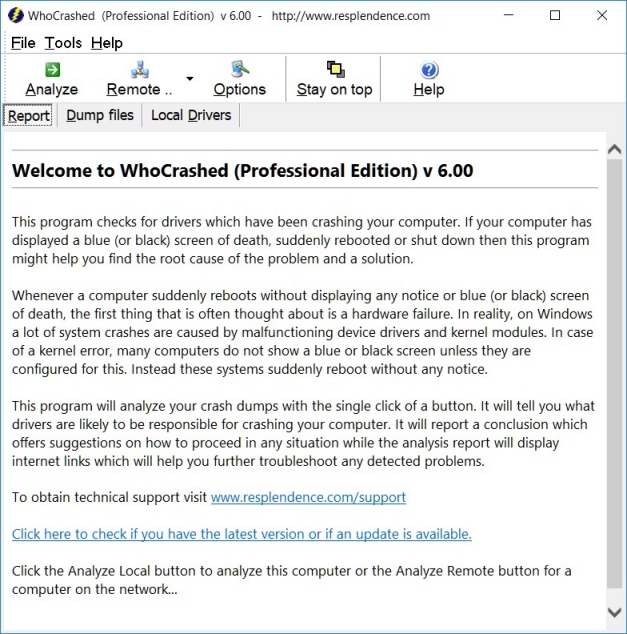
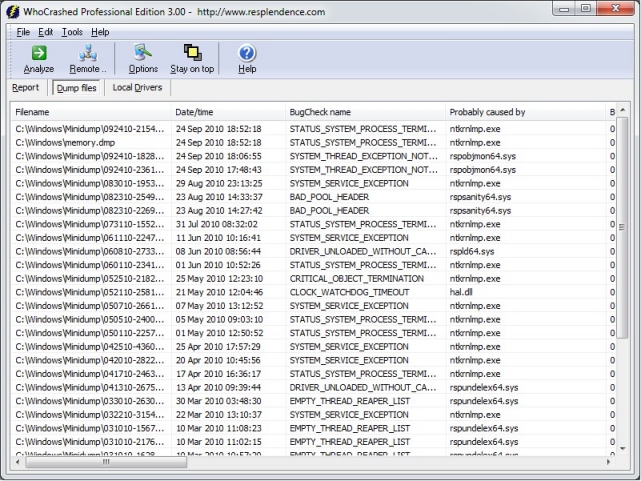
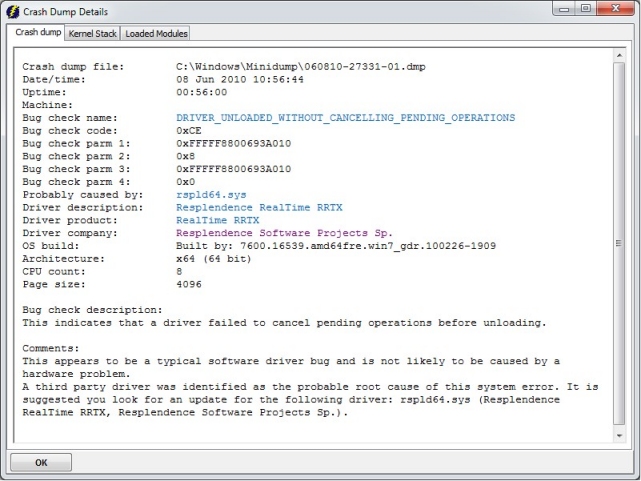
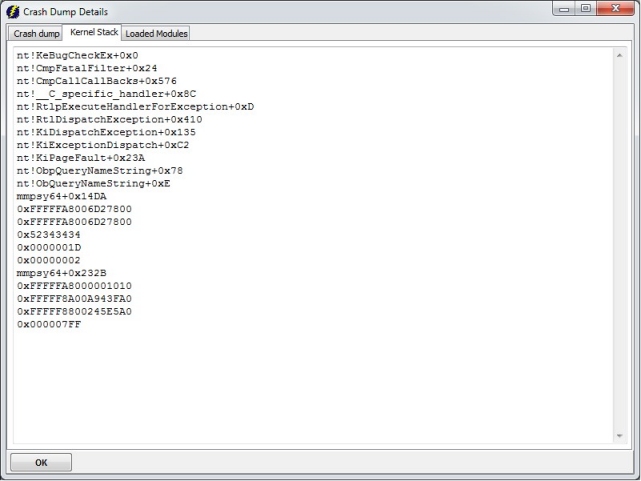
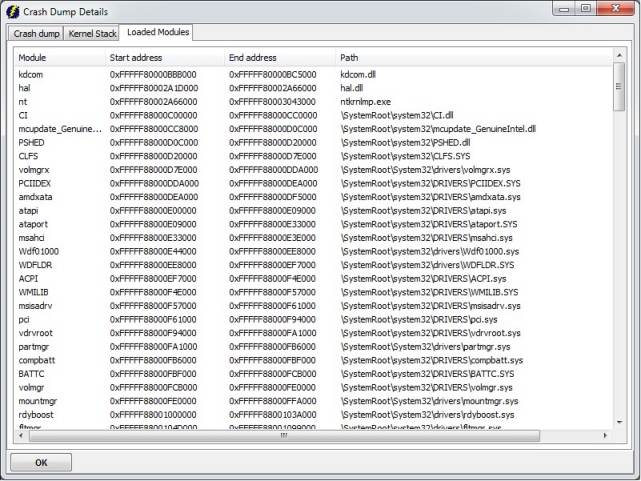
Screenshots from WhoCrashed 7.10 running on Windows
Frequently Asked Questions
Answers to the most common questions about downloading, installing, and using WhoCrashed for crash dump analysis on Windows.
Is WhoCrashed safe to download and install?
Yes, WhoCrashed is safe. It is developed by Resplendence Software Projects Sp., a company that has been building Windows diagnostic tools since the early 2000s. The installer from the official Resplendence website passes scans on VirusTotal with zero detections across all major antivirus engines.
WhoCrashed version 7.10 has a file size of roughly 11 MB for the Home Edition installer. The application only reads crash dump files (.dmp) stored in your C:WindowsMinidump directory. It does not modify system files, inject drivers, or make registry changes beyond its own installation entry. Users on Reddit’s r/buildapc and r/techsupport regularly recommend it without safety concerns. CyberPowerPC UK even references WhoCrashed in their official support documentation for diagnosing BSOD stop codes.
- Download only from resplendence.com/whocrashed or reputable mirrors like MajorGeeks
- Avoid any site offering a “cracked” or “pre-activated Professional” version
- The installer does not bundle adware, toolbars, or third-party offers
- Windows SmartScreen may prompt you on first run because the installer is not from the Microsoft Store – click “More info” then “Run anyway”
Pro tip: If your antivirus flags the installer, it is a false positive. WhoCrashed uses the Windows Debug Engine (dbgeng.dll), which some heuristic scanners misidentify. Whitelist the Resplendence install directory to prevent interference.
For download links to the verified installer, visit our download section.
Is WhoCrashed free from malware and spyware?
WhoCrashed is completely free from malware and spyware when downloaded from the official source. Resplendence Software has maintained a clean track record for over 20 years with no reported incidents of bundled malware in any of their products.
The official installer (whocrashed_setup.exe, approximately 11 MB) contains no adware, no browser hijackers, and no data-collection components. WhoCrashed works entirely offline after installation. It reads local minidump files, runs analysis against the Windows Debug Engine, and generates reports. It does not phone home, send crash data to external servers, or require an internet connection to function. The only network call it makes is an optional update check, which you can disable.
- No telemetry or usage tracking in the Home Edition
- No bundled browser extensions or search bar modifications
- The software does not run background services or startup processes after you close it
- Uninstalling via Add/Remove Programs removes all files cleanly
Pro tip: Scan the installer with VirusTotal before running it if you want extra peace of mind. Upload the .exe file at virustotal.com and verify zero detections. This takes about 30 seconds and confirms the file has not been tampered with.
See our features overview for details on what WhoCrashed actually does under the hood.
Where is the official safe download for WhoCrashed?
The official download for WhoCrashed is hosted on the Resplendence Software website at resplendence.com/whocrashed. This is the only source maintained directly by the developer.
The current version is 7.10, released in August 2025. The Home Edition installer is approximately 11 MB and the Professional Edition is around 18 MB. The official download page offers both editions, with the Home Edition available as a free download and the Professional Edition requiring a license purchase of $34.95 USD. The domain whocrashed.com also links to the official Resplendence download page.
- Primary source: resplendence.com/whocrashed (direct from developer)
- Trusted mirrors: MajorGeeks, CNET Download, Uptodown
- Avoid: random file-sharing sites, torrent downloads, and any link offering “WhoCrashed Professional free”
- A common mistake is clicking ad-sponsored “Download” buttons on mirror sites instead of the actual download link
Pro tip: Bookmark the direct download URL from Resplendence so you always get the latest version without landing on a lookalike page. The official filename follows the pattern whocrashed_setup.exe for the Home Edition.
You can also grab WhoCrashed from our download section, which links directly to the official installer.
Does WhoCrashed work on Windows 11?
Yes, WhoCrashed 7.10 works on Windows 11 without any compatibility issues. It supports all current Windows 11 builds including 23H2 and 24H2.
WhoCrashed supports a wide range of Windows versions: Windows 11, 10, 8.1, 8, 7, Vista, and XP SP3. It also runs on Windows Server editions including Server 2022, 2019, 2016, 2012, 2008, and 2003. Both 32-bit and 64-bit architectures are supported. The application uses the Windows Debug Engine (dbgeng.dll) that ships with every Windows installation, so there are no extra dependencies to install.
- Windows 11 Home, Pro, Enterprise, and Education editions are all supported
- On Windows 11, crash dumps are stored in C:WindowsMinidump by default
- You need administrator privileges to access and analyze dump files
- If Windows 11’s memory integrity (Core Isolation) is enabled, WhoCrashed still functions normally
Pro tip: On Windows 11, if you are not seeing dump files after a crash, open Settings, go to System > About > Advanced system settings > Startup and Recovery > Settings, and make sure “Small memory dump (256 KB)” is selected. Windows 11 sometimes defaults to “Automatic memory dump,” which works too but produces larger files.
Check the full list of supported platforms on our system requirements page.
What are the minimum system requirements for WhoCrashed?
WhoCrashed has very modest system requirements. Any PC that can run Windows XP SP3 or later can run WhoCrashed without issues.
The application itself uses minimal resources. The installer is about 11 MB, and the installed footprint is under 30 MB on disk. During crash dump analysis, WhoCrashed typically uses less than 100 MB of RAM, even when processing large dump files. There are no specific CPU or GPU requirements. The analysis process takes between 5 and 30 seconds on most modern hardware, depending on the number and size of dump files available.
- OS: Windows XP SP3, Vista, 7, 8, 8.1, 10, or 11 (32-bit or 64-bit)
- RAM: 512 MB minimum (any system running Windows meets this)
- Disk space: 30 MB free for installation
- Administrator access is required to read crash dump files
- No internet connection needed for analysis
Pro tip: WhoCrashed runs fine on older machines and is a good choice for diagnosing crashes on budget or aging hardware where heavier tools like WinDbg might feel sluggish. You can even run it in Windows Safe Mode if the system is too unstable to boot normally.
View the full specs on our system requirements section.
Does WhoCrashed support 32-bit operating systems?
Yes, WhoCrashed fully supports both 32-bit (x86) and 64-bit (x64) versions of Windows. The same installer works on either architecture.
This is worth noting because some crash analysis tools, including certain versions of WinDbg, have dropped 32-bit support in recent releases. WhoCrashed 7.10 maintains backward compatibility all the way to Windows XP SP3 on 32-bit hardware. If you are still running a 32-bit version of Windows 7 or Windows 10 (which Microsoft offered until version 2004), WhoCrashed will install and run correctly. The dump file format (.dmp) differs slightly between 32-bit and 64-bit systems, and WhoCrashed handles both formats automatically.
- 32-bit Windows XP, Vista, 7, 8, 8.1, and 10 are supported
- 64-bit Windows 7 through 11 are supported
- Windows Server 2003 through 2022 (both 32-bit and 64-bit where applicable)
- The installer detects your architecture and installs the correct version
Pro tip: If you have a 32-bit system that is crashing, WhoCrashed is one of the easiest tools to use since it does not require you to install debugging symbol packages separately. On 64-bit systems, the Professional Edition can optionally download symbols from Microsoft’s symbol server for deeper analysis.
For operating system details, see our system requirements page.
Is WhoCrashed completely free to download and use?
The WhoCrashed Home Edition is free to download and use for personal, non-commercial purposes. There is no trial period, no feature expiration, and no mandatory registration.
The free Home Edition covers everything most people need: it analyzes minidump files on your local machine, identifies the driver or component responsible for each crash, and generates a plain-language report explaining the probable cause. Resplendence Software has offered this free edition since the tool’s initial release, and there are no signs of that changing. The Home Edition does not display ads, nag screens, or upsell popups during analysis. You get a full crash report every time.
- Home Edition: free for personal use, no registration required
- Professional Edition: $34.95 USD (EUR 29.95) for a single license
- No subscription model – the Professional license is a one-time purchase
- Upgrades from older Professional versions cost around $19.95 USD
Pro tip: The free Home Edition is sufficient for diagnosing crashes on your own PC. The Professional Edition adds value mainly for IT technicians who need to analyze dump files from multiple machines over a network, or who want command-line automation and symbol server integration.
Download the free Home Edition from our download section.
What is the difference between WhoCrashed free and Professional?
The Home Edition handles local crash analysis for free, while the Professional Edition ($34.95) adds network analysis, command-line support, and deeper technical reporting.
For everyday users troubleshooting their own BSOD errors, the free Home Edition covers everything needed. It reads minidump files from your C:WindowsMinidump directory, identifies the faulting driver, and explains the crash in readable language. The Professional Edition targets system administrators and IT support staff who need to analyze crash dumps from remote computers across a network without physically sitting at each machine.
- Network/remote dump analysis: Professional only
- Command-line interface for scripting and automation: Professional only
- Kernel stack traces with full symbol resolution: Professional only
- Loaded module list at crash time: Professional only
- Custom dump directory analysis (analyze dumps from any folder): Professional only
- Sortable columns and uptime tracking reports: Professional only
- Commercial use license: Professional only
Pro tip: If you manage 10+ workstations and regularly handle BSOD tickets, the Professional Edition pays for itself after a couple of incidents. The network analysis feature lets you pull dump files from any machine on your domain without needing remote desktop access.
See the complete feature breakdown in our features section.
How do I download and install WhoCrashed step by step?
Installing WhoCrashed takes about two minutes. Download the installer from the official site, run it, and click through a standard Windows setup wizard.
The installer (whocrashed_setup.exe) is approximately 11 MB for the Home Edition. It does not require a reboot after installation. WhoCrashed installs to C:Program FilesResplendenceWhoCrashed by default. The setup wizard has no bundled software offers or tricky checkboxes to watch out for.
- Visit the download section and click the download button for the Home Edition
- Save whocrashed_setup.exe to your Downloads folder
- Double-click the installer. If Windows SmartScreen appears, click “More info” then “Run anyway”
- Accept the license agreement and click Next
- Choose the install directory (default is fine for most users) and click Install
- Click Finish. WhoCrashed is ready to use
Pro tip: Right-click the installer and select “Run as administrator” before launching it. While the installer usually requests elevation on its own, doing this manually avoids rare cases where UAC settings block the elevation prompt silently.
For a more detailed walkthrough, visit our Getting Started guide.
How to fix WhoCrashed installation errors on Windows?
Most WhoCrashed installation errors come down to insufficient permissions or a corrupted download. Running the installer as administrator fixes the majority of cases.
If the installer fails or hangs, the first thing to check is whether you are running it with administrator rights. WhoCrashed needs to register components with the Windows Debug Engine, which requires elevated privileges. On Windows 10 and 11, right-click whocrashed_setup.exe and select “Run as administrator.” If the download itself is corrupted, the installer may crash immediately or show a CRC error. Re-download the file from the official source.
- Right-click the installer and select “Run as administrator”
- If you get a “file is corrupted” error, delete the downloaded file and re-download from resplendence.com/whocrashed
- Temporarily disable your antivirus if it blocks the installer (some heuristic engines flag dbgeng.dll interactions)
- If you see an error about dbgeng.dll or SetCheckUserInterruptShared, your Windows installation may be missing debug components. Run “sfc /scannow” in an elevated Command Prompt to repair system files
- On Windows 8.1, some users report the error “procedure entry point SetCheckUserInterruptShared could not be located.” Update to the latest Windows 8.1 service pack or use an older WhoCrashed version
Pro tip: If WhoCrashed refuses to install on an older system, try extracting the installer with 7-Zip instead of running it. You can sometimes run WhoCrashed.exe directly from the extracted folder without a formal installation.
Check our system requirements to confirm your OS version is supported.
Is there a portable version of WhoCrashed?
WhoCrashed does not offer an official portable version. The standard installer is the only distribution method from Resplendence Software.
Unlike BlueScreenView (which is fully portable), WhoCrashed relies on a proper installation because it registers components with the Windows Debug Engine during setup. The installed size is under 30 MB, so disk space is not a concern. If you need to analyze crash dumps on a machine where you cannot install software, the Professional Edition lets you copy dump files to another PC and analyze them there using the custom dump directory feature.
- No official portable (.zip) version exists
- The installer does not require a reboot, so installation is quick
- For portable crash analysis, BlueScreenView (free, from NirSoft) is a common alternative
- Professional Edition can analyze dump files copied from other machines, which partially works around the portability limitation
Pro tip: If you regularly need portable BSOD analysis, keep BlueScreenView on a USB drive for quick field diagnostics, and use WhoCrashed on your main workstation for its more detailed, readable reports. The two tools complement each other well.
Learn more about installation options in our Getting Started guide.
WhoCrashed says no crash dumps found – how do I fix this?
If WhoCrashed reports “no valid crash dumps were found,” your system is either not configured to save minidump files, or the dump directory is empty because the crashes were not true BSODs.
Windows needs to be explicitly configured to write small memory dumps after a crash. By default, most Windows installations have this enabled, but some OEM configurations or group policies disable it. WhoCrashed looks in C:WindowsMinidump for .dmp files. If that folder does not exist or is empty, there is nothing to analyze. This is the single most common issue users report on Reddit and Microsoft Q&A forums.
- Open the Start menu and search for “Advanced system settings”
- Click “Settings” under “Startup and Recovery”
- Under “Write debugging information,” select “Small memory dump (256 KB)”
- Make sure the dump file path shows %SystemRoot%Minidump
- Click OK, then restart your computer
- Wait for the next crash, then run WhoCrashed again
Pro tip: If your computer freezes or reboots without showing a blue screen, the crash may be caused by a hardware failure (like a faulty PSU or overheating GPU) that cuts power before Windows can write a dump file. In that case, WhoCrashed will not find anything because no dump was created. Check your Event Viewer (eventvwr.msc) under Windows Logs > System for “Kernel-Power” event ID 41, which indicates an unexpected shutdown.
For more troubleshooting steps, visit our Getting Started guide.
How to fix WhoCrashed not opening or crashing on startup?
WhoCrashed failing to open is usually caused by a missing or incompatible version of dbgeng.dll, the Windows Debug Engine library that WhoCrashed depends on.
This problem appears most often on Windows 8.1 and older systems where certain system updates are missing. On Windows 10 and 11, the issue is rare. If WhoCrashed crashes on launch with an error referencing dbgeng.dll or “SetCheckUserInterruptShared,” your system’s debug engine needs updating. The fix is straightforward in most cases.
- Open an elevated Command Prompt (search “cmd,” right-click, “Run as administrator”)
- Run: sfc /scannow – this repairs missing or corrupted system files including dbgeng.dll
- If sfc does not fix it, run: DISM /Online /Cleanup-Image /RestoreHealth
- Install all pending Windows Updates, particularly cumulative and servicing stack updates
- Uninstall WhoCrashed, reboot, and reinstall the latest version from the official site
Pro tip: On Windows 8.1 specifically, the dbgeng.dll issue is a known bug. If system file repair does not resolve it, install the Windows Software Development Kit (SDK) for Windows 8.1, which includes an updated debug engine. Alternatively, upgrade to Windows 10 where this problem does not occur.
Check our system requirements to verify your OS version is compatible.
WhoCrashed shows a driver but I do not know what to do next
When WhoCrashed identifies a driver (like ntoskrnl.exe, nvlddmkm.sys, or atikmdag.sys), the next step is to update, roll back, or replace that specific driver.
WhoCrashed’s report names the .sys file that was active at the time of the crash. This does not always mean that driver is the root cause – sometimes a driver crashes because another component corrupted memory. But it is the right starting point. For example, nvlddmkm.sys is the NVIDIA display driver, atikmdag.sys is AMD’s display driver, and ntoskrnl.exe is the Windows kernel itself (which often points to a hardware issue like bad RAM).
- Note the driver filename from the WhoCrashed report (e.g., nvlddmkm.sys)
- Search the filename online to identify which device or software it belongs to
- Visit the hardware manufacturer’s website and download the latest driver
- If the crash started after a recent driver update, roll back: open Device Manager, right-click the device, select Properties > Driver > Roll Back Driver
- If the report points to ntoskrnl.exe or hal.dll, run Windows Memory Diagnostic (mdsched.exe) to test your RAM
Pro tip: If the same driver keeps appearing across multiple crash reports, that is a strong signal. A single appearance could be a fluke. Three or more crashes blaming the same driver file is a pattern worth acting on. Use WhoCrashed’s report timeline to spot repeating offenders.
See our features section for more on how WhoCrashed identifies crash causes.
How to update WhoCrashed to the latest version?
WhoCrashed does not have a built-in auto-updater. To update, download the latest installer from the official website and install it over the existing version.
The current version is 7.10, released in August 2025. Resplendence Software publishes updates periodically to add support for new Windows versions and improve crash analysis accuracy. There is no need to uninstall the old version first. Running the new installer overwrites the previous installation while keeping your preferences. The update process takes under a minute.
- Open WhoCrashed and click Help > About to check your current version
- Visit resplendence.com/whocrashed to see the latest version available
- Download the new installer if a newer version exists
- Run the installer – it will upgrade the existing installation automatically
- No reboot required after updating
Pro tip: WhoCrashed updates are infrequent (a few times per year at most), so checking every couple of months is sufficient. Major Windows releases (like a new Windows 11 version) are the most common trigger for a WhoCrashed update, since new crash dump formats or debug engine changes can affect analysis accuracy.
Get the latest version from our download section.
What is new in WhoCrashed version 7.10?
WhoCrashed 7.10 is the latest release as of August 2025. It includes updated Windows 11 compatibility and improved crash dump analysis accuracy for newer driver formats.
Resplendence Software does not publish detailed public changelogs for every point release, but version 7.x brought several improvements over the 6.x line. The analysis engine was updated to handle crash dumps from Windows 11 23H2 and 24H2 correctly. The report formatting was refined to provide clearer explanations of common crash causes. The Professional Edition gained better symbol server integration for faster remote analysis.
- Full Windows 11 24H2 support for crash dump analysis
- Updated debug engine integration for recent Windows builds
- Improved driver identification in crash reports
- The Home Edition installer remains around 11 MB, the Professional around 18 MB
- No changes to system requirements – still works on Windows XP SP3 and later
Pro tip: If you are running an older version (5.x or 6.x) and analyzing crashes on a Windows 11 machine, upgrade to 7.10. Older versions may misidentify drivers or fail to parse newer dump file formats, leading to inaccurate or incomplete reports.
Download version 7.10 from our download section.
WhoCrashed vs BlueScreenView – which is better for BSOD analysis?
Both are good, but they serve slightly different users. WhoCrashed gives you readable, plain-language crash reports. BlueScreenView gives you raw technical data in a table format. Most Reddit users recommend keeping both installed.
WhoCrashed (developed by Resplendence Software) analyzes minidump files and produces a report that tells you in plain English which driver likely caused the crash and what to do about it. BlueScreenView (developed by NirSoft) displays crash data in a spreadsheet-like table showing the bug check code, parameters, driver filename, and memory addresses. BlueScreenView is free, portable (no installation required), and lighter at under 1 MB. WhoCrashed is free for the Home Edition but has a paid Professional tier at $34.95.
- WhoCrashed: best for beginners and non-technical users who want a clear explanation
- BlueScreenView: best for experienced users who can interpret raw crash data and stop codes
- WhoCrashed can suggest whether hardware failure might be involved; BlueScreenView does not
- BlueScreenView is portable (runs from a USB drive); WhoCrashed requires installation
- For deep analysis, IT professionals often use WinDbg (Microsoft’s free debugger), which has the steepest learning curve but the most power
Pro tip: The best workflow is to run WhoCrashed first for a quick, understandable summary, then open BlueScreenView to cross-reference the specific driver and bug check code. If both tools point to the same driver, you have high confidence in the diagnosis.
Learn more about WhoCrashed’s analysis capabilities in our features section.
Can WhoCrashed analyze crash dumps from another computer?
The free Home Edition can only analyze crash dumps on the local machine. The Professional Edition ($34.95) can analyze dumps from remote computers over a network or from any custom directory.
With the Professional Edition, you can point WhoCrashed at a network share or a local folder containing .dmp files copied from another machine. This is the main selling point for IT support teams who manage multiple workstations. You can collect minidump files from a crashed PC (copy the contents of C:WindowsMinidump), drop them into any folder on your workstation, and tell WhoCrashed Professional to analyze that directory. The command-line interface also supports this, making it possible to script batch analysis across dozens of machines.
- Home Edition: local machine only, reads from C:WindowsMinidump
- Professional Edition: any directory, network paths (UNC), remote machines
- Command-line usage (Professional): whocrashed.exe /analyze /dumpdir:”D:collected-dumps”
- For Home Edition users, manually copy .dmp files to C:WindowsMinidump as a workaround (not officially supported but sometimes works)
Pro tip: If you are an IT admin handling BSOD tickets, set up a shared network folder where users can drop their minidump files. Then use WhoCrashed Professional’s command-line mode to batch-analyze all dumps in that folder. This saves you from remote-desktopping into every affected machine.
Compare Home vs Professional features in our features section.
How to uninstall WhoCrashed completely?
WhoCrashed uninstalls cleanly through the standard Windows Add/Remove Programs interface. No leftover files, registry entries, or background services remain after removal.
The uninstallation process is straightforward and takes about 30 seconds. WhoCrashed does not install system services, startup entries, or browser extensions, so there is nothing to manually clean up after uninstalling. The crash dump files in C:WindowsMinidump are Windows system files and are not affected by uninstalling WhoCrashed – they remain untouched.
- Open Settings > Apps > Installed apps (Windows 11) or Control Panel > Programs and Features (Windows 10)
- Find “WhoCrashed” in the list and click Uninstall
- Confirm the removal when prompted
- The uninstaller removes all files from C:Program FilesResplendenceWhoCrashed
- No reboot required after uninstalling
Pro tip: Your crash dump files (C:WindowsMinidump) are created by Windows, not by WhoCrashed. Uninstalling WhoCrashed does not delete these files. If you want to clean up old dump files to free disk space, you can safely delete the contents of the Minidump folder manually or use Disk Cleanup.
If you are reinstalling, grab the latest version from our download section.
Still have questions? Visit the official Resplendence Software documentation for technical details, or head to our Getting Started guide for a complete walkthrough.